Back

Case Study · B2B SaaS · FinTech

Simple Booking Accounting Application

My Role
Product Designer
Company
Cyberdesign AB · 2026–present
Platform
Web application
Methods
Expert review · Workshops · In-context testing

Redesigning an accounting app so business owners can do their own bookkeeping, without an accountant

Ongoing · about 50% redesigned and implemented
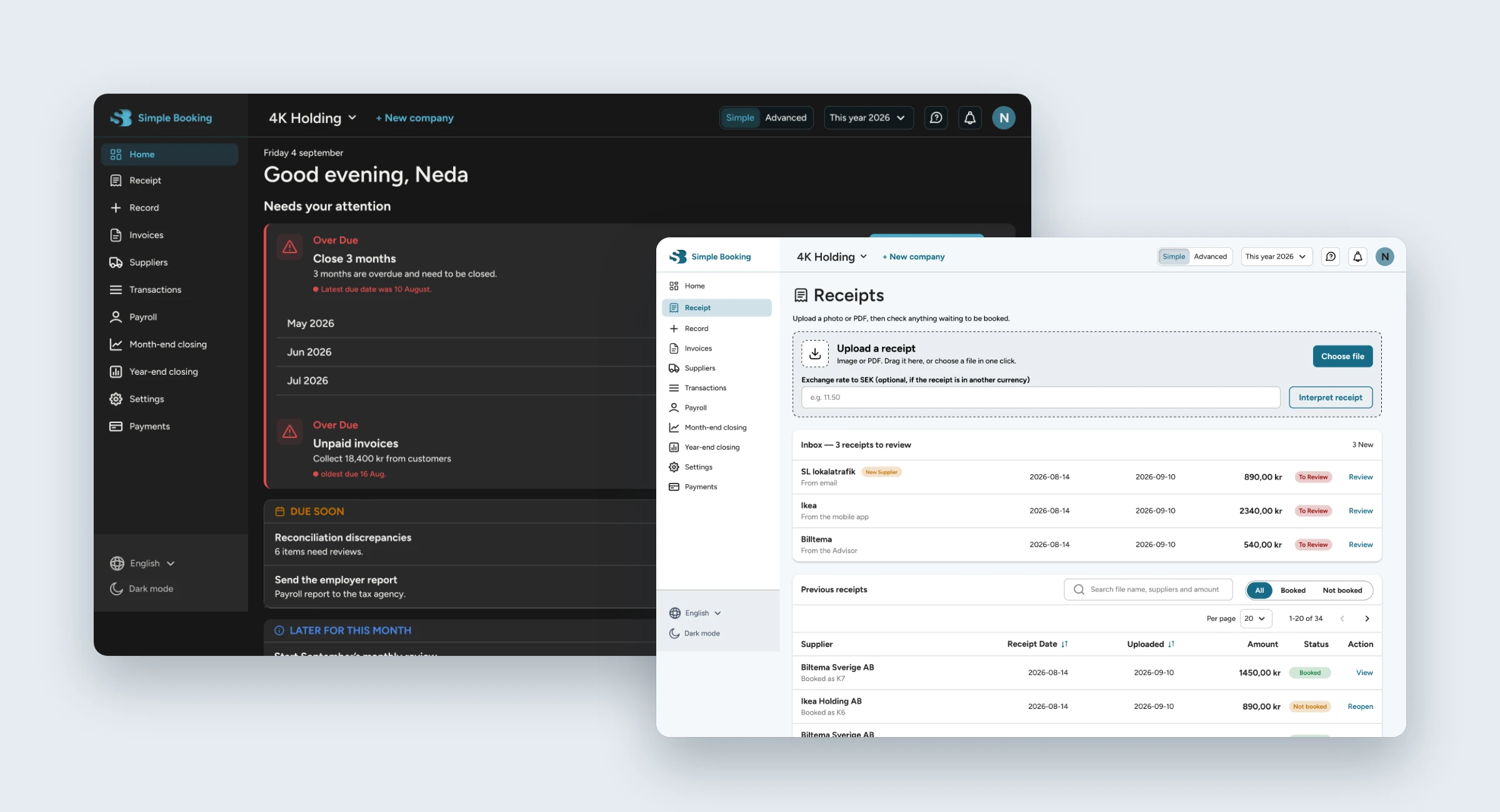
Redesigned Simple Booking: the dark-mode home page with tasks that need attention, and the light-mode receipts page with upload, inbox and previous receipts

The problem: A big accounting app, built by developers without a designer and never tested with users. Its core workflows were confusing, cluttered and sometimes unfinished.

What I did: Reviewed the whole app, built a roadmap with the PM, and ran workshops on each core area with all three real users. Then I redesigned those areas, proposed and designed Adviser, an AI assistant, and built the new UI myself with Claude Code.

Key decisions: An Overview sorted by urgency, clear statuses everywhere, search and filters for long lists, payroll in small steps, and Adviser, an AI assistant inside the app.

Status: About 50% redesigned and built. Formal testing of V2 is next.

The challenge

Simple Booking wants business owners to do their own accounting, taxes and month-end included, for a low monthly price, instead of hiring an accountant. Along the way, Adviser, an AI assistant, helps them understand their numbers.

When I joined, the product was already big: invoices, quotes, receipts, journal, payroll and more. But it was built around the database, not around people. There was no clear hierarchy, statuses were missing, some parts were unfinished, and the app expected users to know accounting, which is exactly what they don't know.

A bit like a cookbook that assumes you're already a chef.

If an owner can't see whether an invoice is paid, they'll hire an accountant instead, and the whole idea fails. So every decision had to answer one question: can someone without accounting knowledge do this alone?

How I worked

The app was too big to fix at once, so I started by reviewing everything myself. Together with the PM, I ranked each part by business importance and how badly it was broken. Six areas came first: Overview, Invoices, Quotes, Receipts, Journal entries and Payroll.

The startup had three real users, all running small companies in Stockholm. That's a small group, but it meant I could work with every one of them. They did real tasks in their own work environment and told me how it felt, and in one session I sat beside a user and watched him think out loud. Then I turned the patterns into design decisions.

I lead the UX work end to end, side by side with the PM, and with the back-end team, who connect the front-end I build to the rest of the product.

  1. Expert review

    I went through the whole app and listed problems, gaps and bugs.

  2. Roadmap with the PM

    We ranked each part by business importance and how serious the problems were.

  3. Testing in real work

    All three users did real tasks in their own environment, and I watched one of them in person.

  4. Finding patterns

    I compared what the three users said and did, and turned it into design decisions.

What I changed

Here's what we found in each area, in the order people use the app. V1 is the original, V2 is my redesign.

Invoices

Users couldn't see which invoices were paid, or find a specific one.

  • No clear statuses → colour-coded status on every invoice
  • No way to find an invoice → search and filtering

Recurring invoices

The setup form came first, so users couldn't see what would be sent next.

  • Setup form on top → expectations and upcoming schedule first
  • No upcoming view → next 30 days at a glance
  • Crowded row actions → actions only when needed
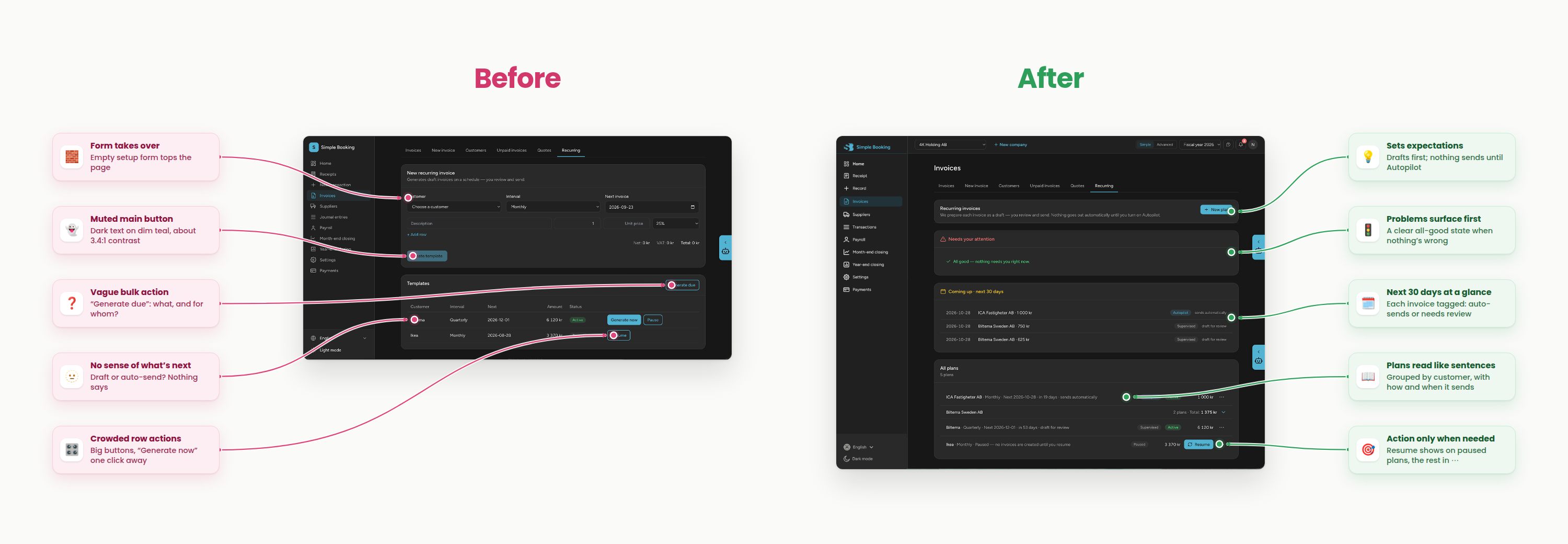
Recurring invoices before and after. Before: setup form on top, vague bulk action, no sense of what happens next, crowded row actions. After: clear expectations, attention section, upcoming 30 days, plans in plain sentences, and actions only when needed.
Dark modeSwipe to see the whole comparisonClick or tap to view full size

Quotes

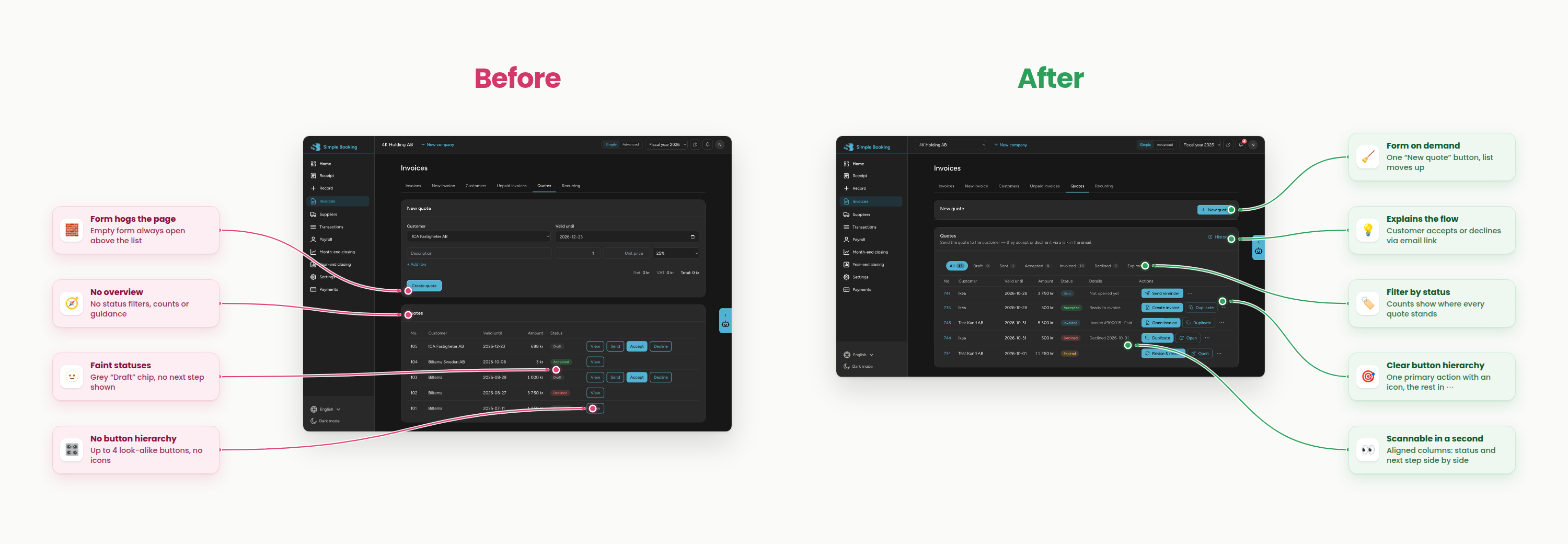
Every button looked equally important and some statuses were missing, so users couldn't tell where a quote stood.

  • Equal-weight buttons → one clear next action
  • Unknown quote state → visible statuses: sent, accepted, declined
  • Form takes over the page → new quote on demand
Quotes page before and after. Before: an always-open quote form, no overview or status filters, faint statuses and up to four look-alike buttons per row. After: form on demand, status filters with counts, one primary action with an icon per row, and aligned columns with next steps.
Dark modeSwipe to see the whole comparisonClick or tap to view full size

Receipts

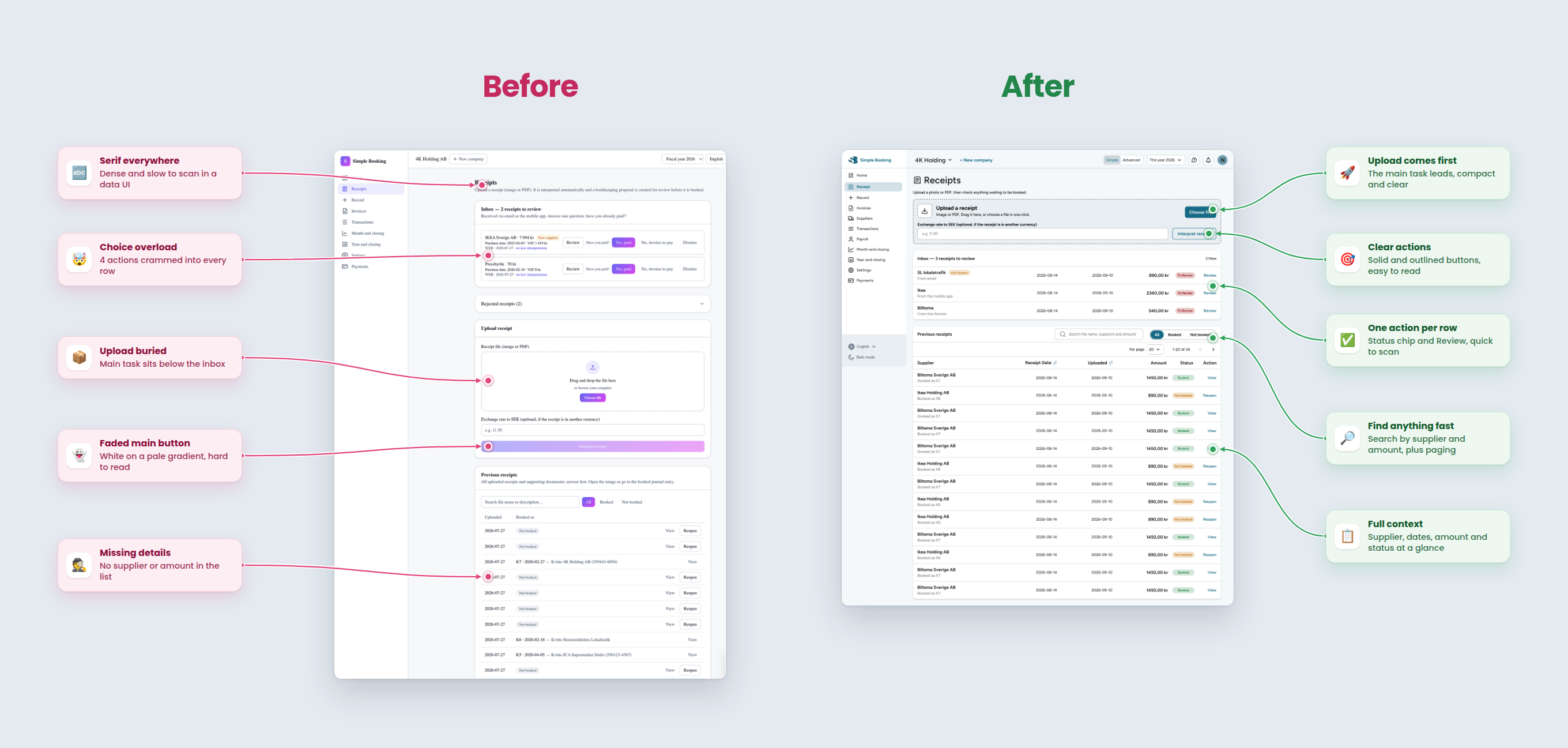
The upload area was so big that users had to scroll to find their receipts, and every status was the same grey.

  • Oversized upload area → compact upload, receipts visible straight away
  • No receipt date → date column with sorting
  • Grey statuses → colour-coded statuses that scan at a glance
  • One long list → search and paging
  • Four actions per row → one clear review action
Receipts page before and after. Before: four actions per inbox row, oversized upload, faded main button, list without supplier or amount. After: compact upload first, one action per row, search and paging, full context in the list.
Light modeSwipe to see the whole comparisonClick or tap to view full size

Journal entries

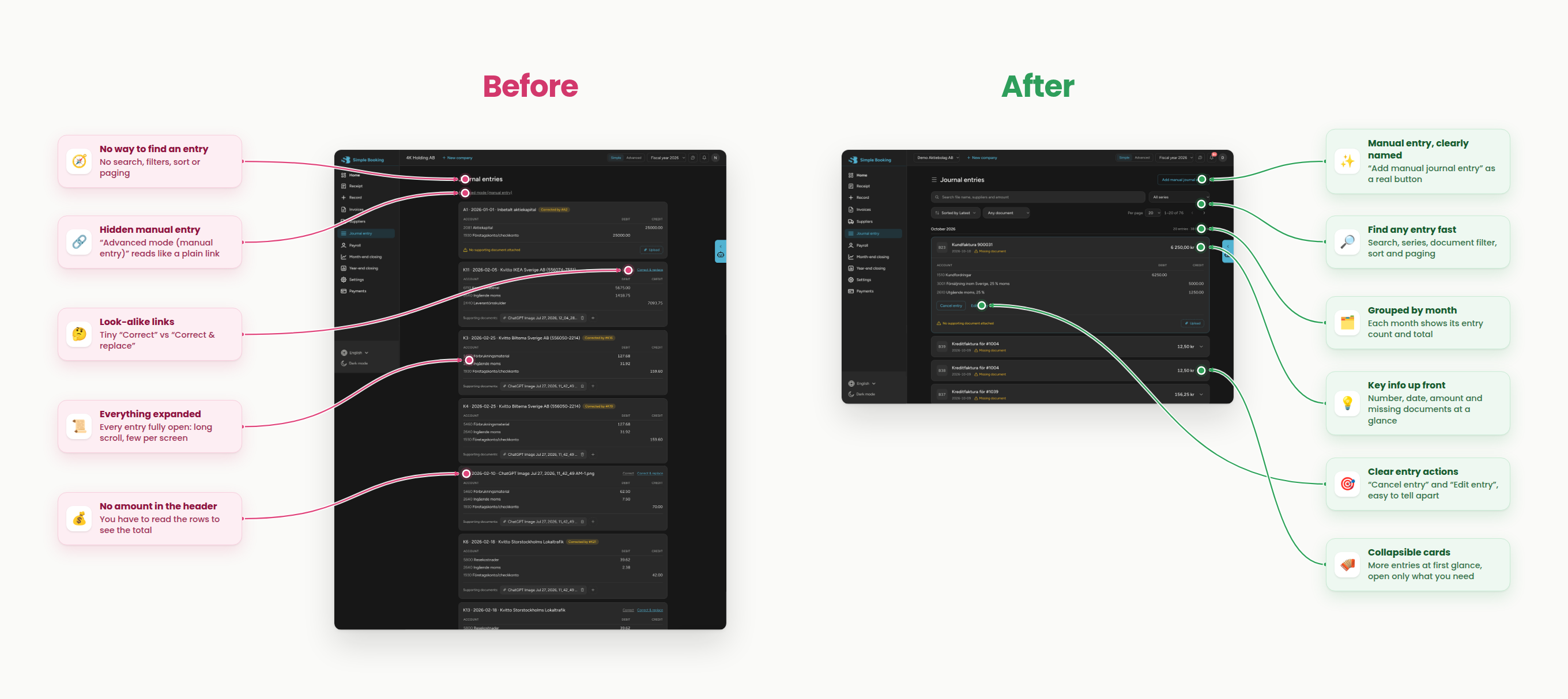
The longest list in the app, with no search, filters or sorting. Finding one transaction meant scrolling through everything.

  • Endless scrolling → search by any value: an amount, a name or a reference
  • One unfiltered list → filters by transaction type
  • Fixed order → sorting by column
  • Hidden manual entry → a clear Add journal entry button
  • Everything expanded → collapsible cards
Journal entries before and after. Before: no search, manual entry hidden as a link, every entry fully expanded. After: Add manual journal entry button, search and filters, collapsible cards with key info in the header.
Dark modeSwipe to see the whole comparisonClick or tap to view full size

Overview

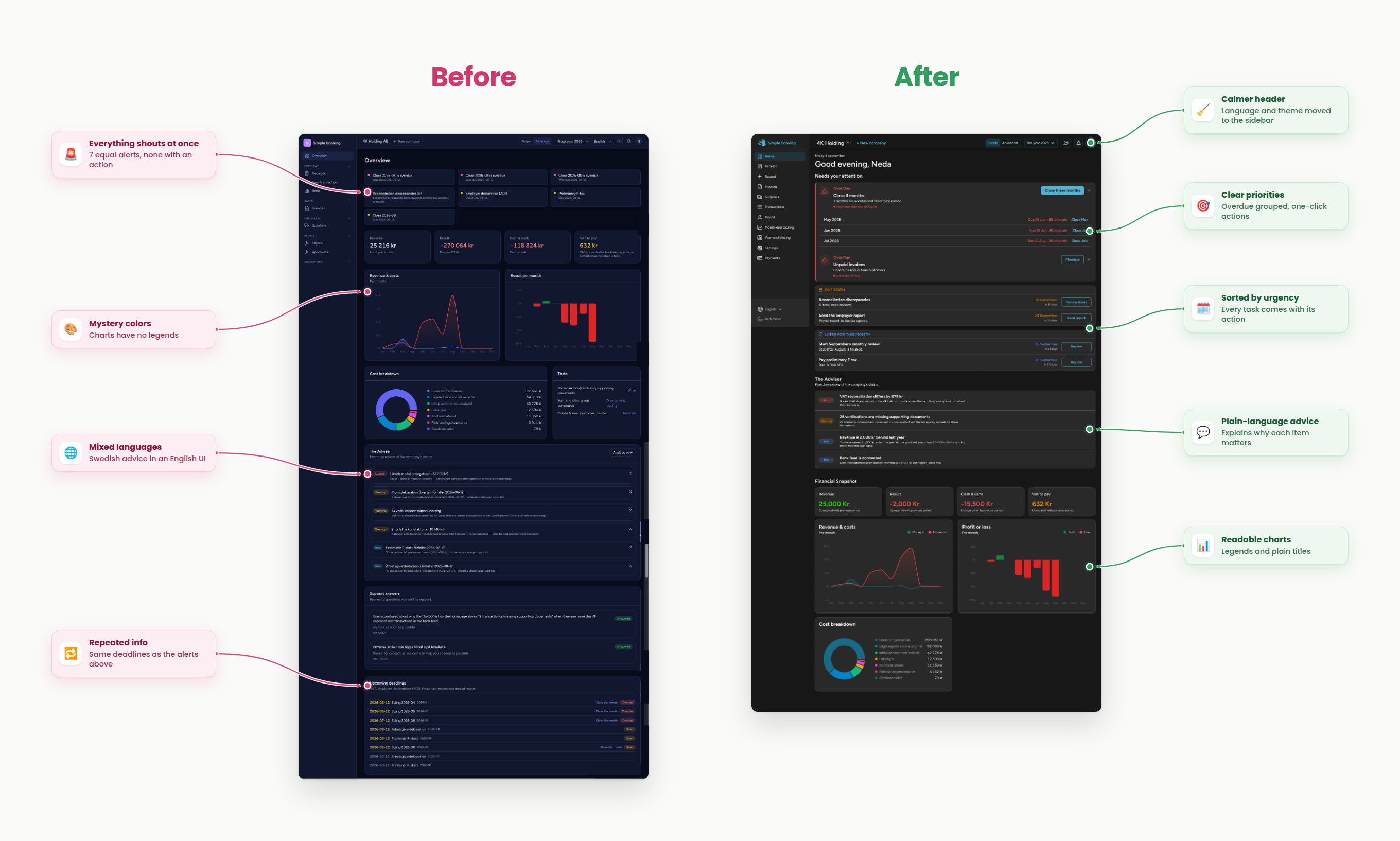
One big block of repeated information, and nothing told users what to do first. So I organised the page by time.

  • Seven equal alerts → one "Needs your attention" list
  • Repeated deadlines → "Due soon", then "Later this month"
  • Numbers mixed into tasks → a separate financial snapshot
  • No clear next step → one-click actions and plain-language advice
  • No sense of timing → a calendar of what's now and what's next
Overview page before and after. Before: seven equal-weight alerts, charts without legends, and deadlines repeated. After: Needs your attention list, due soon grouping, financial snapshot, plain-language advice and readable charts.
Dark modeSwipe to see the whole comparisonClick or tap to view full size

Payroll

Registering an employee meant filling in two long forms. During the workshop, one user stopped and asked:

"I filled in this option above. Why is the system asking me to fill it in again?"

— Workshop participant, Payroll session

No field was actually repeated.

The form was just long enough to give everyone déjà vu.

So the fix wasn't the data, it was how much we showed at once.

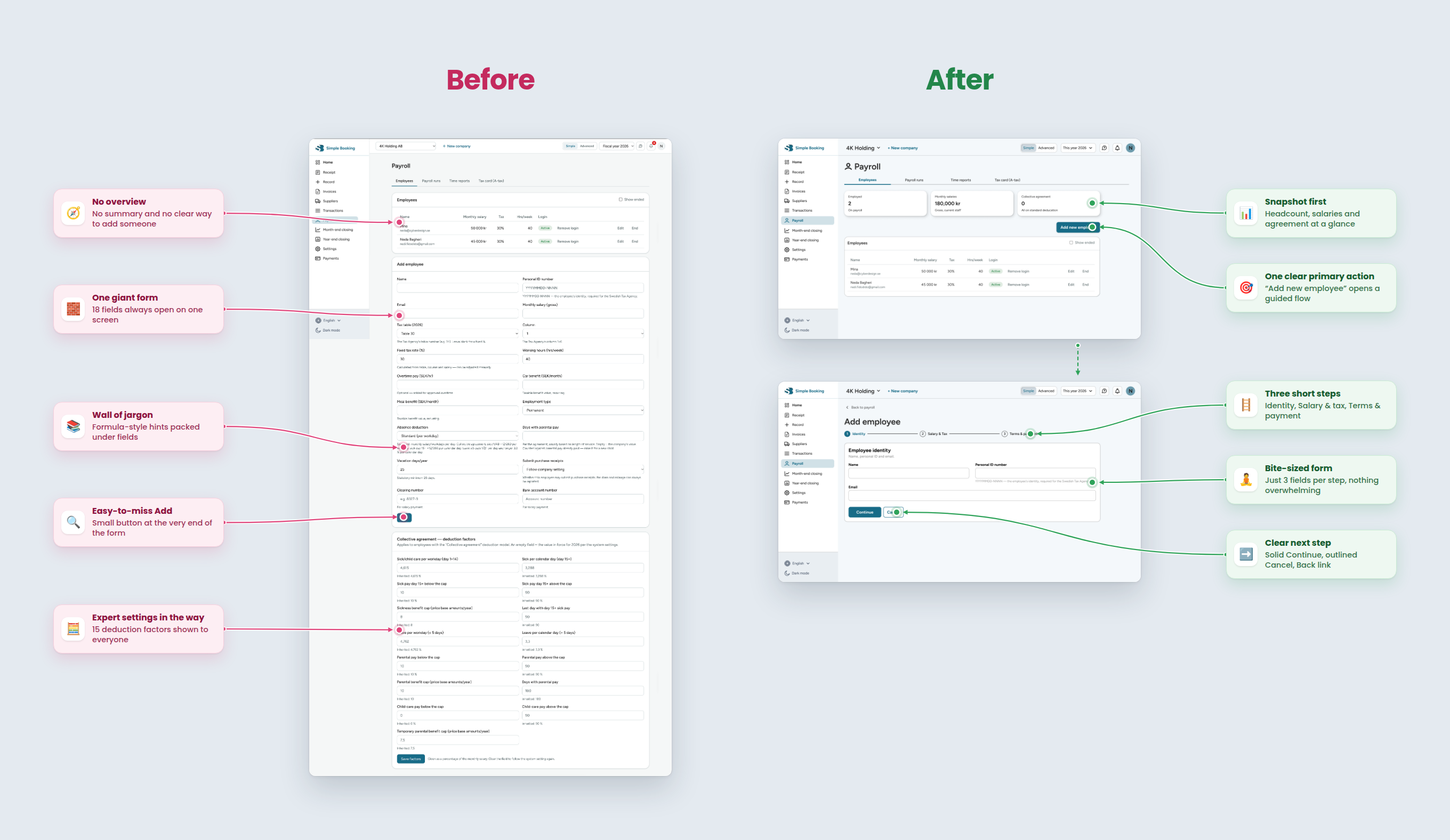
  • Two long forms → three short steps, related fields grouped together
  • No sense of progress → a step indicator
  • No overview → summary cards up front
Payroll before and after. Before: no overview, one giant form, dense hints, an easy-to-miss Add button. After: summary cards, an Add new employee button, and a three-step flow with fewer fields per step.
Light modeSwipe to see the whole comparisonClick or tap to view full size

Adviser: help without leaving the page

AI assistant · My idea, my design, my front-end

Even with clearer screens, accounting raises questions. So the redesign includes Adviser, an AI assistant that opens in a side panel next to the user's work. Nobody has to leave the page, search a help centre or call an accountant.

Adviser started as an idea the team wasn't sure about. I designed it to show what it could be, and the team decided to build it. Because so much of it depended on the back end, I worked closely with the back-end team through many sessions to shape how it should work, then finalised the design and built the front-end myself.

Simple Booking's Adviser panel next to the Overview: a user asks for a support ticket and Adviser confirms it was created, then answers whether two of the user's companies affect each other's revenue.
Adviser answers in plain language, and creates a support ticket when it can't help.

Ask in your own words

Users type a question the way they'd ask a person, like whether two of their companies affect each other's revenue, and get a clear answer without accounting terms.

Understand your numbers

Adviser explains revenue and reports in everyday language, so owners know where they stand.

Speak instead of type

In conversation mode, users just talk. They pause, the question is sent, and the answer is read aloud. Useful when typing is hard or the keyboard gets in the way.

Never stuck

When Adviser can't solve a problem, it creates a support ticket and confirms it right in the chat, so a real person follows up.

Adviser in conversation mode: the user speaks a question, Adviser reads it and replies aloud.
Conversation mode: speak, pause, and hear the answer.

An accountant that's available at 11 pm on a Sunday.

It closes the loop on the question behind the whole redesign: owners can do their accounting alone, but they're never stuck alone.

Design principles

From the workshops, I wrote five principles. I check every new screen against them.

Show what matters first

Start with what needs attention.From the Overview

Make status visible

Users should never have to guess if something is sent, paid or overdue.From Invoices, Quotes and Receipts

Make things easy to find

Long lists always get search, filters and sorting.From Journal entries and Invoices

One clear next step

Each screen has one obvious main action.From Quotes

Less at once

Split long tasks into short steps.From Payroll

One foundation for Figma and code

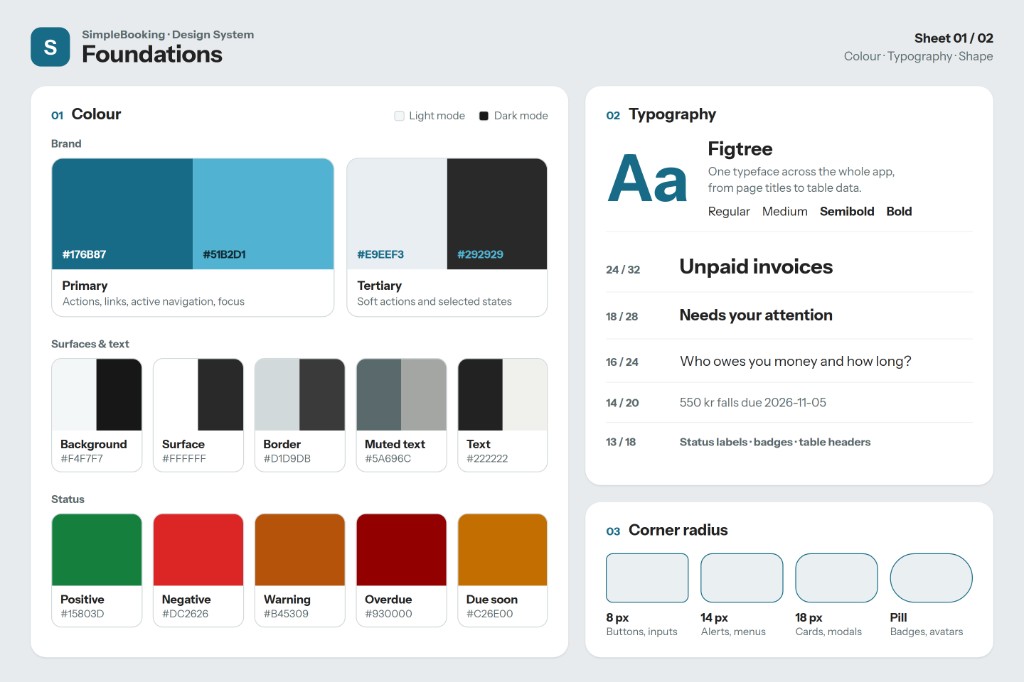
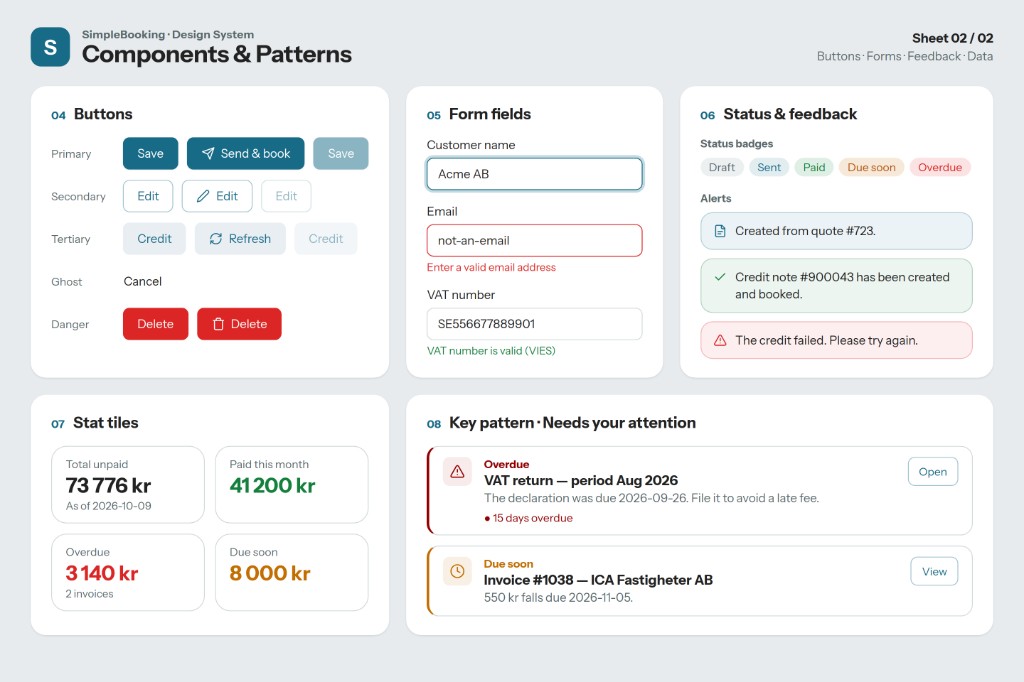
Before redesigning screen by screen, I built a design system, keeping what worked in the old design and improving the rest. It's also what makes building with AI reliable: Claude Code uses the same colours, type and components as my Figma file, so every screen looks and behaves the same.

I build the front-end myself, directly in the product: design in Figma → build with Claude Code, one component at a time → check it in dark and light mode → hand it to the back-end team → improve it with user feedback.

Sheet 01 · Foundations

Simple Booking design system foundations: brand colours, surfaces and text, status colours, Figtree typography scale, and corner radius tokens
Colour, typography and corner radius

Sheet 02 · Components

Simple Booking design system components: button variants, form fields, status badges, alerts, stat tiles, and needs your attention pattern
Buttons, form fields, status, stat tiles and key patterns

Where it is now, and what I learned

About half of the app is redesigned and built. Next comes formal usability testing of V2 with the same three users and the same tasks, comparing V1 and V2 on task completion and errors. Until then, this page shows my decisions and why I made them, not results. I'll add the numbers after testing.

Three users can teach you a lot.

Working with every real user on every core area went deeper than a bigger, quicker study would have.

"Feels repetitive" is a real problem.

If something feels complicated, it needs fixing, even when the data is correct.

Building it myself protects the design.

My decisions make it all the way into the product.

Looking back

What I'd do differently.

I'd add short sessions with a few new users, beyond the three existing ones, to check that the patterns hold as the product grows.

Back